


CrownPlay Casino - Mobile App
If you like playing on your phone, you are exactly who we had in mind when we built CrownPlay for mobile. Let’s dig into how you can use our mobile site, add a shortcut and manage your account on the go.
Introduction to CrownPlay Mobile Casino
Our site is fully optimised for smartphones and tablets, so you can jump between casino, live casino, jackpots and sportsbook from the same browser tab without losing speed or stability. You do not need to download a separate CrownPlay mobile app; everything runs inside your preferred browser with the same account, wallet, VIP level, Coins and bonuses synced across all devices.
Now, when you log in from mobile, you will see the same promotions, Challenges, Bonus Crab and Shop offers that you see on desktop, just rearranged in a touch-friendly layout. Your session is protected by the same security and encryption, and you can still use tools like Responsible Gaming and Live Chat directly from your phone whenever you need them.
Mobile browser experience for casino and sportsbook
You can access the full casino lobby, live tables and sportsbook markets directly from your mobile browser using the same top navigation: Casino, Live Casino, Jackpots, Sports, Live Betting, Virtual Sports and more. Odds, betslips and game tiles resize automatically, so you can browse categories, check promos and place bets comfortably with one hand, even during live matches or while switching between games.
On mobile, you still get search, filters and quick links like “Top”, “New”, “Popular” in the casino, plus dedicated tiles for main sports like football, tennis and basketball in the sportsbook. The experience is basically the desktop site, just packed into your pocket, with extra touches like swipe-friendly carousels and vertical lists that make it easy to scroll through jackpots, specials and tournaments.
Supported devices and mobile browsers
You can play from modern Android phones and tablets, iPhones and iPads using popular browsers like Chrome, Safari, Firefox or Edge, as long as JavaScript and cookies are enabled. The site is responsive, which means it adjusts to different screen sizes, orientations and resolutions, but older or unsupported browsers might not display all animations, banners or menus correctly and can struggle with some heavier live games.
If you ever run into trouble loading games or cashier pages on mobile, hitting refresh, clearing cache or switching to another mainstream browser usually solves it. And of course, you can always ping our 24/7 support via Live Chat or email from your phone, and the Help Centre has a dedicated Technical section with articles tailored to mobile issues if something refuses to cooperate.
CrownPlay Mobile Site Navigation
Here’s the thing: once you land on CrownPlay from your phone, you should never be more than a couple of taps away from your favourite section. The layout keeps the core navigation up top and a handy footer loaded with useful shortcuts, so you can bounce between casino, sports and promos without hunting through hidden menus.
You will also notice that important actions like Log In, Register, Search and language switch sit in the header, always within easy reach of your thumb. This way, you can sign in, change language or search for a specific slot or team before you even start scrolling down the page.
Accessing casino, live casino, jackpots and sports on mobile
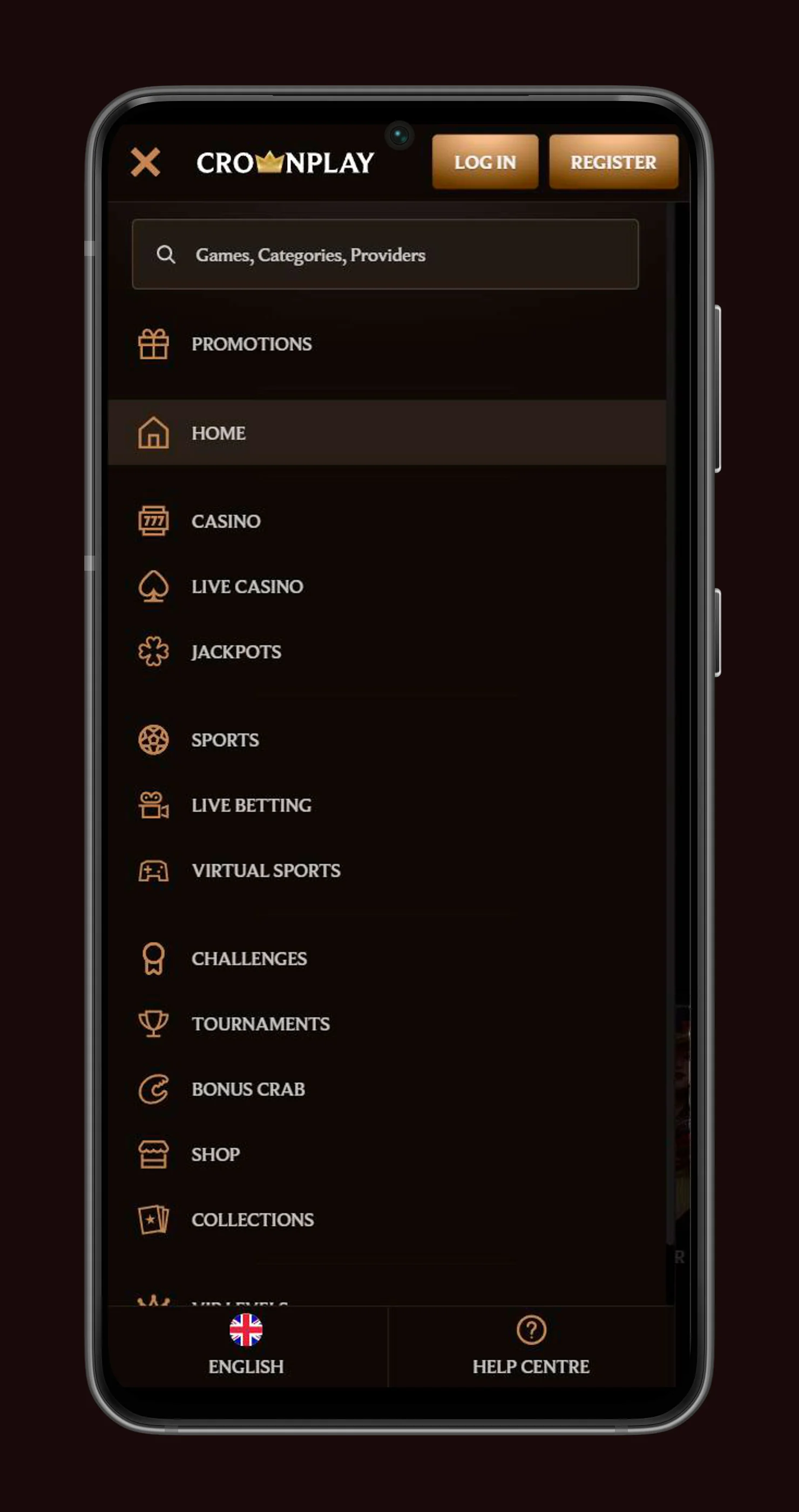
At the top of the page, you will see quick links for Casino, Live Casino, Jackpots, Sports, Live Betting, Virtual Sports, Challenges, Tournaments, Bonus Crab and Shop. Tapping any of these instantly switches you to that vertical, with the content below, like slots grids, live tables or sports categories, adapting to your screen and loading the right filters and tags.
Jackpots, live games and specialist lobbies, such as Megaways or Game Shows, are reachable from within each main section using on-page tabs like “Top”, “New”, “Popular”, “Live Games” or “All Jackpots”. That way, you can move from a football bet to a jackpot spin without scrolling through endless menus, and you can quickly hit “See all” links for promos such as Specials, Tournaments, or Shop offers if you feel like exploring more.
Using the main menu and footer links on smartphones
On smaller screens, the sidebar navigation and burger menu become your best friends. Tapping the menu icon opens the full navigation tree, where you can jump to Challenges, VIP, Help Centre, Promotions and more with one tap, plus direct links to all casino game categories like Slots, Live Games, Table Games, Jackpots and sport types like football or tennis.
This menu mirrors the same structure as the desktop, just rearranged vertically for thumb-friendly scrolling, so if you know where something sits on your laptop, you will find it in the same “neighbourhood” on mobile. The footer is another powerhouse: it includes links to About Us, Help Centre, Create Shortcut, Sitemap, Casino and Sports sections, Responsible Gaming, Terms and Conditions and Payments, so whenever you are lost, just scroll down, and those footer links will get you back on track fast.
Installing the CrownPlay Shortcut on Android
Now, even if we do not have a native app, you can still give CrownPlay its own icon on your Android home screen. That shortcut behaves almost like an app and launches the site straight into your browser, with the same account, balance and promos you see on desktop.
Once you add it, you will find CrownPlay sitting next to your other favourite APKs, ready to open the casino, live casino, jackpots or sportsbook in a couple of seconds. It is a neat way to turn our mobile site into an “app-like” experience without any downloads or updates from the store.
Step‑by‑step guide to adding CrownPlay to your home screen
Most Android browsers support “Add to Home screen” for our site. In Chrome, for example, you can follow a simple flow:
- Open crownplay.com on your Android phone and log in if you want, so the shortcut remembers where you left off.
- Tap the browser menu (three dots) and look for “Add to Home screen” or “Install app”, then confirm the name “CrownPlay”.
- Approve the creation of the shortcut, and the new icon will appear on your home screen among your apps.
On some phones, you might see a bottom or top banner asking if you want to “Install” or “Create Shortcut” for CrownPlay after a few visits. That does the same thing and is just a faster way to create the icon without digging into the menu.
Some devices may also show a smart banner or prompt to “Create Shortcut” when you visit the site, which links to the same functionality that you can also reach via the footer link “Create Shortcut”. If you have multiple browsers installed, pick the one you use most often so the shortcut always opens where you want it, and you do not get bounced between different apps.
Launching the casino via Android shortcut
Once the shortcut is in place, launching CrownPlay is as simple as tapping the icon on your home screen or mobile app drawer. Your default browser will open directly on our site, skipping extra address bar typing or search steps and taking you straight to the lobby or the last page you used.
If you are already logged in and have “remember me” enabled in the browser, you will typically land in a ready-to-play state with instant access to games and sports, Challenges, Bonus Crab and Shop. If not, you just log in once and let your device keep those details securely for next time, according to its own security and privacy settings, and you can always log out manually if you share the device with someone else.
Adding CrownPlay to Home Screen on iOS
If you are on an iPhone or iPad, you can still keep CrownPlay one tap away using Safari’s “Add to Home Screen” feature. It works very similarly to Android shortcuts but lives entirely inside iOS, so there is no App Store download, no updates and no extra permissions to worry about.
Once you add it, the CrownPlay’s icon behaves like a mobile web app launcher, taking you straight into CrownPlay in Safari, where you can jump into casino, live casino, jackpots or sportsbook in seconds. It is perfect if you like the “app” feel but want to keep things light on storage and avoid constant app updates.
How to use “Add to Home Screen” in Safari
On iOS, shortcuts are created through the Share menu in Safari. To do that:
- Open crownplay.com in Safari on your iPhone or iPad and wait for the page to load fully so the correct icon and name are picked up.
- Tap the Share icon (square with an arrow), scroll the options and select “Add to Home Screen”.
- Adjust the shortcut name if you like, then tap “Add” to create the CrownPlay icon on your home screen.
The new icon will look just like any other app tile and will open CrownPlay in Safari when tapped, using the same account and wallet you use on desktop. If you later move it into a folder or a different home screen page, it continues working the same, and you can even create multiple icons pointing to different Safari pages if you want quick access to specific sections like Sports or Casino.
Managing and removing the CrownPlay shortcut on iPhone and iPad
Managing the shortcut is no different from managing regular apps. You can tap and hold the icon to move it, add it to a folder with other casino or sports apps, rename folders for easier organisation or drag it to the dock for faster access from any home screen.
If you want to remove the shortcut, just tap and hold, then choose “Remove Bookmark” or tap the small “-” button or “Remove app” option, depending on your iOS version. This only deletes the icon; your CrownPlay account, balance and settings stay intact and accessible via Safari at any time, and you can recreate the shortcut in a few seconds whenever you feel like having us back on your home screen.
Mobile Registration, Login and Account Management
You can do everything from your phone that you would normally do on a desktop, from registration and KYC to deposits, withdrawals and bonus activation. The layout is simply adapted to a vertical, touch-friendly format, with big buttons, swipeable forms and progress indicators so you never lose track of where you are in the process.
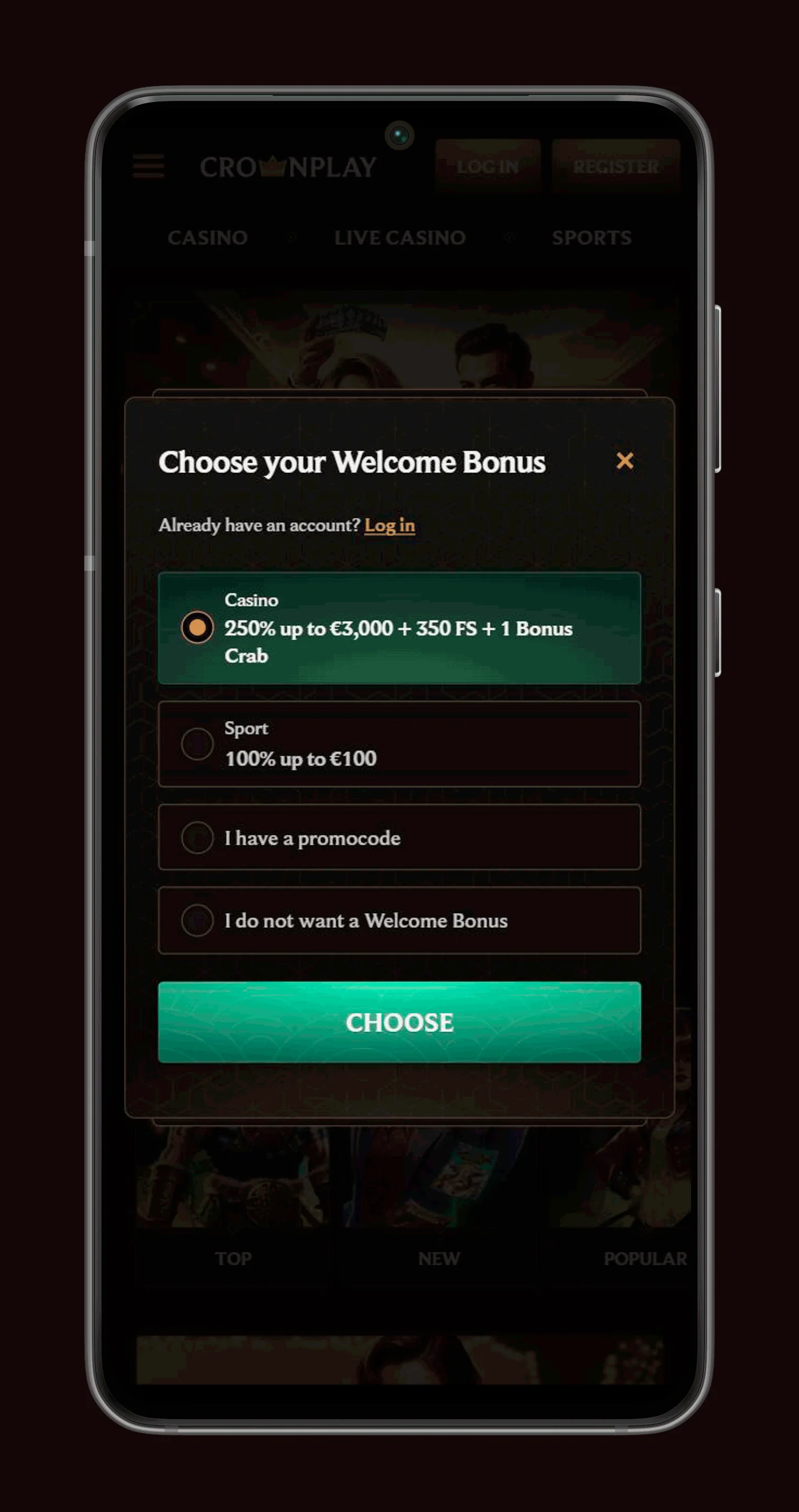
Whether you are setting deposit limits, checking your VIP level or editing personal details through My Account, all those features are optimised for mobile screens and work the same way across devices. If you are in a restricted country or hit age verification during signup, the site will let you know right away with clear error messages and next steps.
Signing up and logging in from your phone
To register, just hit the “Register” button in the header, then fill in the required details like email, password, currency and country in the step-by-step form shown on your mobile screen. The Help Centre has dedicated articles like “How can I join the website?” and “Why am I not able to open an account?” which are fully accessible from mobile if you run into eligibility questions or form errors.
Logging in is just as simple through the “Log in” button in the header or via prompts that appear when you try to access account-only areas like bonuses or withdrawals. If you ever forget your password or username, there are mobile-optimised flows for “I forgot my password, how can I recover it?” and “I forgot the username/email address I used to register” that send reset links straight to your phone.
Verifying your account and uploading documents on mobile
You can upload verification documents directly from your phone using the My Account and Verification sections, as explained in Help Centre articles like “What documents are required for account verification?” and “How can I upload documents?”. The upload interface supports images taken with your mobile camera, pictures from your gallery or even PDF scans, which is handy if you do not have access to a scanner or desktop.
If you run into trouble uploading, there is a specific article titled “I’m having trouble uploading my documents, what should I do?” or “Why were my documents rejected?” that you can open on mobile for step-by-step tips like file size limits or format requirements. Until verification is done, some account functions, like withdrawals, may be limited, so it is worth completing this early, and you do not need to contact support unless documents get rejected or you are missing the right ones.
Mobile Games, Payments and Bonuses on the Go
Now, once your shortcut is in place and your account is ready, you can treat your phone as your main CrownPlay hub. All the big stuff, slots, tables, live casino, jackpots, sports bets, Challenges, tournaments and Bonus Crab, is available on mobile with the same promos and Coins you see on desktop.
If you like to mix casino and sports, you can flip between a live blackjack table and a football betslip in a couple of taps without logging in again. Everything runs on the same wallet, so you always see your updated balance and active bonuses no matter which section you open from your phone.
Playing slots, live games and jackpots on mobile
The full game lobby is accessible from your phone, with categories like Slots, Instant Games, Table Games, Live Casino, Jackpots and more in both the main menu and footer. Game tiles are optimised for touch, and most titles open in a mobile-friendly view where spin buttons, stake selectors and bet controls are resized for your fingers in portrait or landscape mode.
Weekly Casino Challenges, tournaments and Bonus Crab can also be joined on mobile, so you do not miss any Coin or bonus opportunities while away from your desktop. As long as your connection is stable, you can spin, draw cards and chase daily or lucky jackpots pretty much anywhere you have mobile data or Wi‑Fi, and the lobby will still show tags like “Top”, “New”, “Popular” or “Daily Jackpots” to guide you.
Deposits, withdrawals and bonuses from smartphones
Payments are fully mobile-ready, with the same banking methods like Visa, Mastercard and a range of e‑wallets and crypto options accessible through the Payments section and the cashier overlay. You can initiate deposits and withdrawals on your phone, then track their status through My Account and, if needed, check the Deposits and Withdrawals articles in the Help Centre for limits and processing times.
Bonuses and promotions, including casino and sports offers, Challenges and Shop, are also reachable from the mobile site via the Promotions links, main menu and footer. You can opt in, activate and play through bonuses just as you would on desktop, from welcome deals to free bets and Coin shop rewards, so your bonus grind never has to stop when you leave the house and switch to your phone.